-
Getting started
-
Basics
-
Getting the most out of your glasses
-
VIVE Connect app
- About VIVE Connect app
- Pairing and unpairing your glasses
- Connecting and disconnecting your glasses
- Setting the AI button behavior
- VIVE AI screen
- Personalizing VIVE AI
- Managing translations
- Managing memos
- Managing voice recordings
- Managing VIVE AI chats
- Managing media
- Managing your VIVE AI subscription
- Adding a live streaming account
- Cloud backup and restore
- Managing app permissions
- Setting an auto turn off timer
- Locating your glasses
- Updating the VIVE Eagle firmware through VIVE Connect
-
Solutions and FAQs
-
General
- Can I use VIVE Eagle without VIVE Connect?
- Can I use VIVE Eagle while charging?
- Can I use a power bank to charge the VIVE Eagle?
- Can I use VIVE Eagle on a plane?
- Can I use VIVE Eagle in another country?
- Can I use VIVE Eagle while driving or cycling?
- How do I apply the nose pads to my glasses?
- Can VIVE Eagle access my phone contacts?
- How do I forget VIVE Eagle from my phone?
- What should I do if I see the message "Clear existing pairing data"?
- I'm planning to change the phone I use with VIVE Eagle, what should I do?
- What should I do if I can't answer incoming calls from the LINE app?
- What should I do if the white status LED stays fading in and out instead of rapidly blinking after turning on the glasses?
- What should I do if the glasses won't turn on even after charging them for a while? The status LED is also blinking pink.
- My glasses are connected to VIVE Connect but I still can't update my glasses or import media, what should I do?
- While setting up the glasses, a "Go to phone's Bluetooth settings" message keeps appearing but I don't see my VIVE Eagle in the list, what should I do?
-
VIVE AI
- How can I make VIVE AI do what I ask?
- Why doesn't VIVE AI tell me the weather conditions when I ask?
- What should I do when VIVE AI responds with "Something went wrong, please try again" or "Sorry, can't connect to the server, please try again"?
- How can I get VIVE AI to play music on my Android phone?
- I'm a Samsung phone user. How can I get VIVE AI to work with a different phone assistant?
-
Media
- Can I set the resolution and orientation of my photos and videos?
- What happens when I run out of storage or battery while recording?
- What is the maximum length of videos that I can record with the VIVE Eagle?
- Where is my media saved?
- Does VIVE Eagle retain my media when I disconnect or unpair it from my phone?
- How can I turn off the camera when I'm not using it?
- I've already turned up the volume but it's still too low, what should I do?
- What should I do if I can't play music on VIVE Eagle?
- Why am I getting a Wi-Fi error when trying to import media to my Android phone?
-
Maintenance
-
-
Appendix
What should I do if the white status LED stays fading in and out instead of rapidly blinking after turning on the glasses?
Once you turn on your glasses, the white status LED will slowly fade in and out for a few seconds before it starts rapidly blinking (indicating that it's in pairing mode). If the LED does not start blinking, please do the following.
Note: The procedure below only works if your glasses' firmware is updated to version
1.13.999.3 or later. If the procedure below doesn't work for you, contact
customer support.
-
Long press
both the AI button and capture button for around 12 seconds to enter service mode.
The status LED will start blinking pink when the glasses are in service mode.
Important: Go to the next step only when the status LED is blinking pink (service mode).
-
Press the capture button five times in quick succession to perform a factory reset.
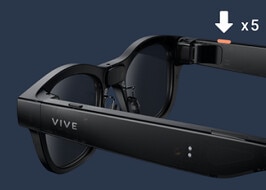
You'll know the glasses are performing a factory reset when you see this status LED sequence: blinking white and pink (few seconds) > blinking white > rapidly blinking white. Once the status LED starts rapidly blinking white, the factory reset is finished and the glasses are now in pairing mode.
- On your phone, open the Bluetooth settings menu.
- Find VIVE Eagle on the list of paired devices and then forget the device.
- Launch VIVE Connect and pair your glasses with the phone again. See Pairing your glasses.
Was this helpful?
Yes
No
Submit
Thank you! Your feedback helps others to see the most helpful information.